
Imagine controlling your home’s lighting with just your voice. Setting up a light bulb with Google Home can make your life easier and more convenient.
Whether you want to turn lights on before you enter a room or dim them while watching a movie, it’s simpler than you think. In this guide, you’ll learn step-by-step how to connect your smart bulb to Google Home quickly and effortlessly.
Get ready to transform your space and enjoy hands-free lighting control every day. Keep reading—your smarter home starts here.
Credit: smarthsy.com
Choosing Compatible Smart Bulbs
Setting up a smart light bulb with Google Home starts with picking the right bulb. Not all smart bulbs work with Google Home. Choosing a compatible bulb makes setup easier.
Look for bulbs that support Google Assistant. This lets you control lights by voice or app. Compatibility ensures smooth connection and better features.
Check For Google Assistant Support
Google Home uses Google Assistant to control devices. Pick bulbs labeled as “Works with Google Assistant.” This means the bulb can connect directly to your Google Home app.
Choose The Bulb Type
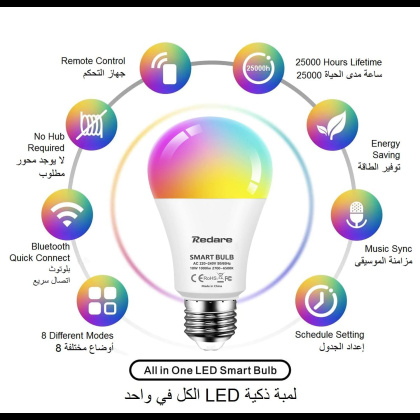
Smart bulbs come in different types. Some use Wi-Fi, others use Zigbee or Bluetooth. Wi-Fi bulbs connect directly to your router. Zigbee bulbs may need a hub for Google Home to control them.
- Wi-Fi bulbs:No hub needed, easy setup.
- Zigbee bulbs:Require a compatible hub.
- Bluetooth bulbs:Limited range, direct control.
Consider Brightness And Color Options
Check the bulb’s brightness and color features. Some bulbs offer white light only. Others have full RGB color control. Choose bulbs that fit your lighting needs and Google Home commands.
Review Compatibility With Other Smart Devices
Make sure the smart bulb works well with other devices in your home. Some smart bulbs support multiple platforms like Alexa or Apple HomeKit. This can add flexibility if you use different smart systems.
| Feature | Wi-Fi Bulbs | Zigbee Bulbs | Bluetooth Bulbs |
|---|---|---|---|
| Requires Hub | No | Yes | No |
| Range | Depends on Wi-Fi | Longer with hub | Short |
| Setup Complexity | Easy | Moderate | Easy |
| Google Home Support | Direct | Via Hub | Limited |

Credit: www.youtube.com
Setting Up Google Home App
To control your light bulb with Google Home, you first need the Google Home app. This app helps you connect devices easily.
Setting up the app takes just a few minutes. Let’s look at how to get started.
Downloading The App
The Google Home app is free and works on Android and iOS devices. Download it from the official app store on your phone.
- Open Google Play Store on Android or App Store on iPhone
- Search for “Google Home”
- Select the app by Google LLC
- Tap the download or get button
- Wait for the app to install on your device
Creating Or Logging Into Your Account
After installing, open the Google Home app. You need a Google account to use it. Sign in or create a new account if you don’t have one.
Follow the on-screen prompts to complete the sign-in process and set up your Google Home app.
- Tap “Sign In” if you have a Google account
- Enter your email and password
- If no account, tap “Create Account”
- Fill in your details to make a new Google account
- Accept the terms and privacy policy
- Complete setup and return to the app dashboard
Connecting Smart Bulbs To Google Home
Smart bulbs make your home lighting easy to control. You can change colors or switch bulbs on and off using Google Home.
To connect your smart bulb, you need to set up Bluetooth and Wi-Fi on your phone and Google Home device. Then add the bulb as a new device in the Google Home app.
Enabling Bluetooth And Wi-fi
Bluetooth and Wi-Fi help your Google Home find and control smart bulbs. Turn on both on your phone before setup.
- Go to your phone’s settings.
- Turn on Bluetooth.
- Connect to your home Wi-Fi network.
- Make sure Google Home is on the same Wi-Fi.
- Keep your phone near the smart bulb.
Adding A New Device
Open the Google Home app to add your smart bulb. Follow the app’s instructions to complete setup.
| Action | Details |
| Open App | Launch Google Home on your phone |
| Add Device | Tap the “+” icon and select “Set up device” |
| Choose Device Type | Select “New devices” to find your bulb |
| Follow Prompts | Complete setup by following on-screen steps |
| Test | Turn the bulb on/off using Google Home |

Credit: www.lepro.com
Configuring Smart Bulb Settings
Setting up your smart light bulbs with Google Home is easy. You can control them using voice commands or the app.
Adjusting settings helps organize your bulbs. This makes managing them simple and fast.
Naming Your Bulbs
Name each bulb clearly. Use simple names that describe where the bulb is.
Clear names help Google Home understand your commands better. For example, use “Living Room Lamp” or “Bedroom Light”.
- Use short and easy words
- Avoid similar names for different bulbs
- Include the room or purpose in the name
Grouping Bulbs By Room
Group bulbs by the room they are in. This helps control many bulbs at once.
You can say “Turn off all lights in the kitchen” if bulbs are grouped. It saves time and effort.
- Open the Google Home app
- Create a new room or select an existing one
- Add bulbs to the correct room group
Voice Command Integration
Setting up your light bulb with Google Home lets you control lights using your voice. You can turn lights on or off without touching switches.
Google Home works with many smart bulbs. Voice commands make it easy to adjust brightness and colors.
Basic Commands To Try
Start with simple commands to control your light bulb. Use clear phrases for better results.
- “Hey Google, turn on the light.”
- “Hey Google, turn off the light.”li>
- “Hey Google, dim the light to 50%.”
- “Hey Google, set the light to warm white.”
- “Hey Google, change the light to blue.”
You can name your light bulbs for easier control. For example, say “Turn on bedroom light.”
Setting Up Voice Routines
Voice routines let you control multiple devices with one command. Create a routine for your light bulb and other smart devices.
Use the Google Home app to set up routines. Choose commands and actions for your lights.
- Open the Google Home app.
- Tap Routines in the settings menu.
- Create a new routine with a voice command.
- Add actions like turning on or changing lights.
- Save the routine and test it with your voice.
Troubleshooting Common Issues
Setting up a light bulb with Google Home usually works well. Sometimes, issues may occur. This guide helps you fix common problems quickly.
We focus on two main problems: connectivity and voice commands. Follow simple tips to get your smart bulb working right.
Connectivity Problems
Connectivity issues stop your Google Home from controlling the light bulb. Check your Wi-Fi and device setup to fix this.
- Make sure your Wi-Fi is working and stable.
- Confirm the light bulb is powered on.
- Check if the bulb is connected to the same Wi-Fi as Google Home.
- Restart your router and Google Home device.
- Update your Google Home and bulb apps to the latest version.
- Remove and re-add the light bulb in the Google Home app.
Voice Command Issues
Sometimes, Google Home does not understand your commands about the light bulb. Clear speech and correct phrases help.
| Common Voice Command Issue | How to Fix |
| Google Home does not recognize the bulb name | Check the bulb name in the app and use it exactly in commands. |
| Commands are ignored or wrong actions happen | Speak clearly and use simple commands like “Turn on the living room light”. |
| Google Home says device is offline | Ensure the bulb has power and is connected to Wi-Fi. |
| Multiple devices respond incorrectly | Assign bulbs to correct rooms in the Google Home app. |
Enhancing Smart Home Experience
Setting up a light bulb with Google Home makes your home smarter. It lets you control lights with your voice or phone.
You can turn lights on or off, change brightness, and set schedules easily. This improves comfort and convenience.
Exploring Advanced Features
Google Home offers many features for smart light bulbs. You can adjust colors and brightness with simple commands.
Use routines to automate lighting. For example, set lights to dim at bedtime or brighten in the morning.
- Change light colors for mood setting
- Adjust brightness for different activities
- Create schedules for automatic control
- Use voice commands for hands-free operation
Integrating With Other Smart Devices
Google Home connects your light bulbs to other smart devices. This lets you control multiple gadgets together.
For example, link lights to smart sensors or alarms. Lights can turn on when you enter a room or when an alarm sounds.
- Connect lights with smart thermostats
- Use motion sensors to trigger lighting
- Combine lights with smart plugs and cameras
- Control all devices from one app or voice
Frequently Asked Questions
How Do I Connect A Light Bulb To Google Home?
To connect, first install the smart bulb and power it on. Open the Google Home app, tap “Add,” then “Set up device. ” Choose your bulb’s brand, and follow the on-screen instructions to link it with your Google Home.
What Smart Bulbs Work With Google Home?
Google Home supports major brands like Philips Hue, TP-Link Kasa, LIFX, and Sengled. Check compatibility on the bulb’s packaging or product details before purchasing to ensure smooth integration.
Can I Control Multiple Bulbs With Google Home?
Yes, Google Home allows you to group multiple bulbs in one room. You can control them simultaneously using voice commands or through the app for convenience.
How Do I Rename A Smart Bulb In Google Home?
Open the Google Home app, select the bulb, tap the settings icon, and choose “Name. ” Enter a new name that’s easy to remember for voice commands.
Conclusion
Setting up a light bulb with Google Home is simple and quick. Just follow the steps carefully to connect your device. Once done, control your lights with your voice easily. Enjoy the comfort of smart lighting in your home. This small change can make daily life a bit brighter.
Try it today and see how convenient it feels. No special skills needed, just a few minutes to start. Smart home living is now within your reach.