
Imagine controlling your home lighting with just your voice. It sounds simple, right?
But if you’re unsure how to connect your smart bulb with Google Home, it can feel confusing. Don’t worry—you’re not alone. This guide will walk you through every step, making the setup quick and easy. By the end, you’ll enjoy hands-free lighting that fits your lifestyle perfectly.
Keep reading to discover how to transform your space with just a few taps and commands.
Choosing The Right Smart Bulb
Choosing the right smart bulb is important for a smooth Google Home connection. Different bulbs have different features and compatibility.
Understanding what to look for helps you pick a bulb that fits your home and needs.
Check Compatibility With Google Home
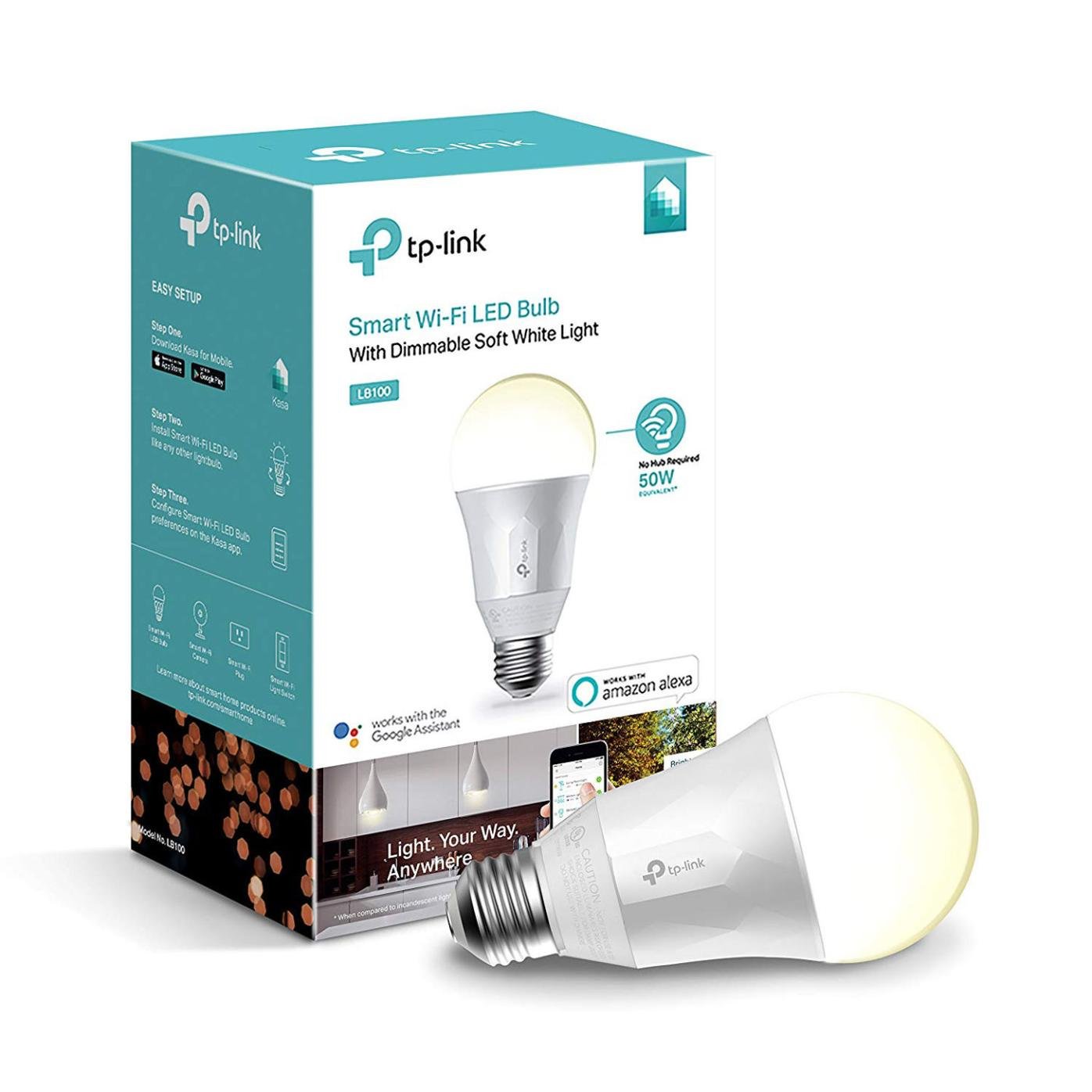
Not all smart bulbs work with Google Home. Always check if the bulb supports Google Assistant before buying.
Look for the Google Home or Google Assistant logo on the packaging or product description.
Choose The Right Bulb Type
Smart bulbs come in many types, like LED, CFL, or halogen. LED bulbs are the most popular for smart home use.
- LED bulbs use less energy and last longer.
- CFL bulbs can contain mercury and are less common in smart versions.
- Halogen bulbs are less energy-efficient and rarely smart.
Consider Color And Brightness Options
Decide if you want bulbs with adjustable colors or just white light. Brightness is measured in lumens.
| Feature | Description |
| Color Changing | Bulbs can display millions of colors |
| White Light | Bulbs offer shades from warm to cool white |
| Brightness | Measured in lumens, higher means brighter |
Look For Connectivity Options
Smart bulbs connect via Wi-Fi, Bluetooth, or Zigbee. Wi-Fi bulbs connect directly to your network.
Zigbee bulbs need a compatible hub, like a smart home bridge. Bluetooth bulbs work only when your phone is near.
Check Power And Socket Type
Make sure the bulb fits your lamp or fixture. Check the socket type like E26 or E27.
- E26 is common in North America
- E27 is common in Europe
- Some smart bulbs use GU10 or other bases for spotlights

Credit: www.youtube.com
Setting Up The Smart Bulb
Connecting your smart bulb to Google Home lets you control lights with your voice. This guide helps you set up the smart bulb quickly and easily.
We will start by checking what comes in the box and then show how to install the bulb safely.
Unboxing And Components
Inside the package, you will find the smart bulb and a user manual. Some kits may also include a Wi-Fi bridge or remote control.
- Smart bulb
- User manual
- Wi-Fi bridge (if needed)
- Remote control (optional)
Installing The Bulb
Before installing, turn off the power to the light fixture. Then, screw the smart bulb into the socket like a regular bulb.
| Installation Step | Details |
|---|---|
| Power Off | Switch off the light or circuit breaker to avoid electric shock. |
| Screw Bulb | Carefully screw the smart bulb into the socket until snug. |
| Power On | Turn the light power back on to activate the bulb. |
| Connect to App | Use the smart bulb app to connect the bulb to your Wi-Fi network. |
| Link to Google Home | Open Google Home app and add the bulb from compatible devices. |
Configuring The Smart Bulb App
To use your smart bulb with Google Home, you must first set up the bulb’s app. This app lets you control the bulb and link it to Google Home.
Follow simple steps to download the app, create an account, and connect your bulb to Wi-Fi. This setup ensures smooth operation and voice control.
Downloading The App
Start by downloading the smart bulb app on your phone or tablet. The app is usually available on both Android and iOS platforms.
Use your device’s app store to find the correct app. Look for the app by the bulb’s brand name to avoid confusion.
Creating An Account
Open the app and sign up for a new account. You will need an email address or a phone number to register.
Choose a strong password to keep your account safe. After registration, verify your email or phone number if asked.
Connecting The Bulb To Wi-fi
Turn on your smart bulb and open the app. Follow the instructions to add a new device and start the connection process.
Select your home Wi-Fi network and enter its password carefully. Make sure your phone is connected to the same Wi-Fi network.
- Place the bulb close to your Wi-Fi router for a strong signal
- Use a 2.4 GHz Wi-Fi network if the app requires it
- Wait for the app to confirm the bulb is connected

Credit: www.reddit.com
Linking Smart Bulb To Google Home
Connecting your smart bulb to Google Home lets you control lights by voice. This guide helps you link your bulb with the Google Home app.
Follow simple steps to set up your smart bulb and start using voice commands quickly.
Opening Google Home App
First, open the Google Home app on your phone or tablet. Make sure you use the latest version of the app.
If you don’t have the app, download it from the App Store or Google Play Store. Sign in with your Google account.
Adding A New Device
In the app, tap the plus (+) icon to add a new device. Choose “Set up device” from the menu options.
Select “New devices” if you want to add a smart bulb for the first time. The app will start searching for nearby devices.
- Tap the plus (+) icon in the top left corner
- Select “Set up device”
- Choose “New devices”
- Pick your home location or create one
Selecting The Smart Bulb Brand
After the app finds your bulb, it asks you to select the brand. Choose the correct brand from the list shown.
Follow the brand-specific instructions to finish linking your smart bulb. You may need to enter your bulb account details.
- Pick your smart bulb brand from the list
- Follow any on-screen instructions
- Sign in to your smart bulb account if needed
- Complete setup and test your bulb
Voice Command Setup With Google Assistant
Connecting your smart bulb with Google Home lets you control lights by voice. This guide helps you set up voice commands using Google Assistant.
With voice commands, you can turn lights on or off, change colors, and adjust brightness easily.
Enabling Voice Control
First, link your smart bulb to the Google Home app. Then, enable voice control through Google Assistant settings.
- Open the Google Home app on your phone.
- Tap “Add” and select “Set up device.”
- Choose “Works with Google.”
- Find your smart bulb brand in the list.
- Sign in to link your smart bulb account.
- Assign the bulb to a room for easier control.
- Test voice commands by saying “Hey Google, turn on the light.”
Creating Custom Commands
You can create custom voice commands using Google Assistant routines. These commands perform multiple actions with one phrase.
| Action | Example Command | Effect |
| Turn on lights | “Good morning” | Turns on smart bulbs in the morning. |
| Change color | “Set lights to blue” | Changes bulb color to blue. |
| Adjust brightness | “Dim the lights” | Reduces brightness to a comfortable level. |
| Turn off lights | “Good night” | Turns off all connected lights. |
Troubleshooting Common Issues
Connecting your smart bulb with Google Home should be simple. Sometimes, problems can occur during setup or use.
This guide helps you fix common issues fast. Check each section if you face trouble.
Connection Problems
Smart bulbs may fail to connect due to network or device issues. Make sure your Wi-Fi is stable and the bulb is powered on.
- Check if your phone and Google Home use the same Wi-Fi network.
- Restart your router and smart bulb to refresh connections.
- Ensure your bulb supports the frequency of your Wi-Fi (2.4 GHz is common).
- Move your bulb closer to the router for better signal strength.
App Malfunctions
The Google Home app or bulb app may crash or freeze. Keep apps updated and clear cache if needed.
Try these fixes for app issues:
- Close and reopen the app.
- Restart your smartphone or tablet.
- Update the app from the app store.
- Clear the app cache in your device settings.
- Reinstall the app if problems continue.
Voice Command Issues
Google Home may not respond or control the bulb correctly. This often happens due to misheard commands or setup errors.
| Problem | Possible Cause | Solution |
|---|---|---|
| Google Home does not recognize bulb name | Bulb name is too complex or similar to other devices | Rename bulb with a simple, unique name in the app |
| Commands are not executed | Google Home not linked to smart bulb app | Check linked services and reconnect accounts |
| Wrong bulb responds | Multiple bulbs with similar names | Use specific names for each bulb |
Maximizing Smart Bulb Features
Smart bulbs offer many ways to improve your home lighting. Connecting them with Google Home makes control easy and fun.
This guide shows how to use lighting modes and set schedules to get the most from your smart bulb.
Exploring Lighting Modes
Smart bulbs come with various lighting modes to suit your mood and activities. You can change colors, brightness, and effects using voice commands.
- Color mode: Choose from millions of colors to fit your style.
- Brightness control: Adjust light levels for reading or relaxing.
- Scenes: Select preset themes like warm, cool, or party mode.
- Music sync: Let the lights change with your music beats.
Setting Schedules And Automation
Schedules help automate your lighting to save energy and add convenience. Google Home lets you create routines that fit your daily life.
| Task | Example Schedule |
| Wake up | Light turns on at 7:00 AM with warm white |
| Leave home | Lights turn off at 9:00 AM |
| Return home | Lights turn on at 6:00 PM with bright daylight |
| Sleep | Lights dim and turn off at 10:30 PM |
Credit: gazette.com
Frequently Asked Questions
How Do I Connect A Smart Bulb To Google Home?
To connect, install the smart bulb app first. Link your Google Home app to the bulb’s account. Use the “Add Device” option in Google Home and follow the prompts. Ensure both devices are on the same Wi-Fi network for a smooth connection.
Can Google Home Control Multiple Smart Bulbs?
Yes, Google Home can control multiple bulbs at once. Group bulbs by rooms or zones in the Google Home app. Use voice commands to turn on/off or adjust brightness for the entire group easily.
What If Google Home Doesn’t Find My Smart Bulb?
Ensure the smart bulb is powered on and connected to Wi-Fi. Check if the bulb’s app is working properly. Restart Google Home and the bulb, then try reconnecting. Update the Google Home app if needed for better compatibility.
Do Smart Bulbs Work Without Wi-fi On Google Home?
Most smart bulbs require Wi-Fi to connect with Google Home. Some support Bluetooth but have limited features. For full voice control and automation, a stable Wi-Fi connection is essential.
Conclusion
Connecting your smart bulb with Google Home is simple and quick. Just follow the steps carefully. You can control your lights with voice commands. This makes daily tasks easier and more fun. Enjoy adjusting brightness or color without moving. Your smart home gets smarter and more convenient.
Start experimenting with different settings today. Small changes can make a big difference. Smart lighting brings comfort and saves energy too. Try it now and see the benefits yourself.