
Want to control your lights without even lifting a finger? Connecting your Google Home to a smart light bulb can make your daily routine easier and more fun.
Imagine turning your lights on or off just by speaking to your Google Home. It’s simple, quick, and can save you a lot of hassle. In this guide, you’ll learn exactly how to connect your Google Home to your light bulb step-by-step, so you can start enjoying hands-free lighting right away.
Keep reading, and you’ll be amazed at how effortless smart lighting can be!
Choosing Compatible Smart Bulbs
Connecting Google Home to a light bulb starts with picking the right smart bulb. Not all bulbs work with Google Home.
You need to choose smart bulbs that match your Google Home system. This helps avoid setup problems later.
Check For Google Home Support
Look for smart bulbs that say they support Google Home. This means they can connect and respond to voice commands.
Many smart bulbs work with Google Assistant. This lets you control lights using your voice through Google Home devices.
Choose The Right Connection Type
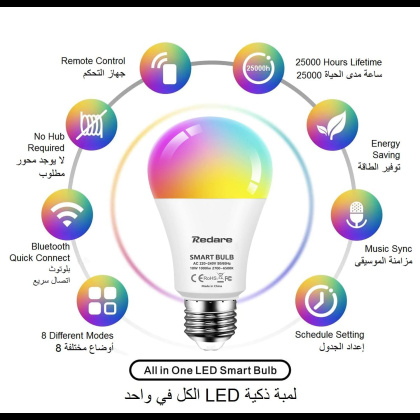
Smart bulbs connect using Wi-Fi, Bluetooth, or Zigbee. Google Home works best with Wi-Fi or Zigbee bulbs.
Wi-Fi bulbs connect directly to your home network. Zigbee bulbs need a hub or bridge that works with Google Home.
- Wi-Fi bulbs: No hub needed, easy to set up
- Zigbee bulbs: Require a hub, more stable connection
- Bluetooth bulbs: Limited range, less common for Google Home
Consider Bulb Type And Features
Pick bulbs that fit your fixtures and needs. Bulbs come in different shapes and sizes like A19, BR30, or GU10.
Some bulbs offer color changes and dimming. Decide if you want simple white light or full color control.
- White bulbs: Basic on/off and dimming
- Color bulbs: Change colors and brightness
- Specialty bulbs: Candle or floodlight shapes
Verify App And Ecosystem Compatibility
Check if the bulb’s app works well with Google Home. Some brands have their own apps that link easily to Google Assistant.
Using bulbs from well-known brands can make setup smoother and ensure updates keep working with Google Home.

Credit: www.youtube.com
Setting Up Your Smart Bulbs
Connecting your Google Home to smart bulbs starts with setting up the bulbs properly. This guide covers installing the bulbs and configuring the app for a smooth experience.
Follow the steps carefully to ensure your smart bulbs work well with Google Home. Let’s begin with installing the bulbs.
Installing The Bulbs
First, screw the smart bulbs into your light sockets. Make sure the power is off before you start.
- Turn off the light switch where you will install the bulb.
- Screw the smart bulb into the socket gently but firmly.
- Turn the power back on to test the bulb.
- Wait for the bulb to blink or change color, showing it is ready.
If the bulb does not respond, check the power and try again.
Configuring The Bulb App
Next, download and open the bulb’s app on your phone. The app helps you connect the bulb to your Wi-Fi and Google Home.
| Step | Action |
| 1 | Open the bulb app and sign in or create an account. |
| 2 | Add a new device by selecting your bulb model. |
| 3 | Follow the app’s instructions to connect the bulb to Wi-Fi. |
| 4 | Once connected, name your bulb for easy control. |
| 5 | Link the bulb app with Google Home through the Google Home app. |
After setup, test the bulb with a voice command to Google Home to confirm it works.
Connecting Google Home
Google Home lets you control smart devices with your voice. You can connect it to smart light bulbs. This guide shows how to do it step by step.
First, you need to set up the Google Home app. Then you link your smart bulbs to the app. After that, you can turn lights on or off using simple voice commands.
Setting Up Google Home App
Download the Google Home app from the App Store or Google Play. Open the app and sign in with your Google account. Follow the on-screen instructions to set up your Google Home device.
- Connect your phone to the same Wi-Fi as Google Home.
- Open the Google Home app and tap “Add”.
- Select “Set up device” then “New devices”.
- Choose your home and tap “Next”.
- Find your Google Home device and connect it.
- Follow prompts to finish setup.
Linking Smart Bulbs To Google Home
To control your light bulbs, link them to the Google Home app. Make sure your smart bulbs are installed and powered on. Also, connect them to the same Wi-Fi network as your Google Home.
- Open the Google Home app.
- Tap “Add” and select “Set up device”.
- Choose “Works with Google”.
- Search for your smart bulb brand in the list.
- Sign in to your smart bulb account to link it.
- Allow Google Home to access your bulbs.
- Assign bulbs to rooms for easy control.
| Smart Bulb Brand | App Required | Supports Voice Control |
|---|---|---|
| Philips Hue | Hue App | Yes |
| LIFX | LIFX App | Yes |
| TP-Link Kasa | Kasa App | Yes |
Voice Command Setup
Connecting Google Home to your light bulb lets you control lights using voice commands. This guide helps you set up simple voice commands.
You can turn lights on or off, change brightness, and set colors using your voice.
Creating Voice Commands
First, link your smart light bulb to the Google Home app. Then, create voice commands to control the light.
Use clear phrases that Google Home can easily understand.
- Say “Hey Google, turn on the living room light.”
- Try “Hey Google, dim the bedroom light to 50%.”
- Use “Hey Google, change the kitchen light to blue.”
Testing Voice Control
After creating commands, test them to make sure they work well. Speak clearly near Google Home.
If the light does not respond, check your Wi-Fi and device settings.
- Say your command slowly and clearly.
- Wait a few seconds for Google Home to respond.
- Check if the smart bulb app shows the changes.
Troubleshooting Common Issues
Connecting Google Home to your light bulb should be easy. Sometimes, problems can stop the connection.
This guide helps you fix common issues fast. Follow these tips to get your smart lights working again.
Connection Problems
Sometimes Google Home cannot find your light bulb. The bulb might not be on the same Wi-Fi as Google Home.
Check if your light bulb is powered on and ready to pair. Restart your router and the bulb if needed.
- Make sure your phone and Google Home use the same Wi-Fi network.
- Turn the light bulb off and on to reset it.
- Restart your Google Home device.
- Update the app controlling the light bulb.
- Check if the bulb supports Google Home integration.
Voice Command Issues
Google Home might not understand your commands for the light bulb. Speak clearly and use simple phrases.
Check if the light bulb name is easy to say and unique. Avoid names that sound like other devices.
- Use clear voice commands like “Turn on the living room light.”
- Rename bulbs in the Google Home app for easier commands.
- Make sure Google Home’s microphone is not muted.
- Train Google Assistant by repeating commands.
- Check if the light bulb is connected before giving commands.
Credit: smarthsy.com
Enhancing Smart Home Experience
Connecting Google Home to your light bulb brings ease to daily life. It lets you control lights with voice commands. This makes your home smarter and more convenient.
Once linked, you can turn lights on or off without moving. You can also adjust brightness and colors. These features improve comfort and save energy.
Integrating Other Devices
Google Home works well with many smart devices. You can add plugs, cameras, thermostats, and more. Linking these devices creates a connected home.
- Smart plugs to control non-smart lamps
- Security cameras for monitoring rooms
- Thermostats to adjust home temperature
- Smart locks for keyless entry
- Speakers to play music across rooms
Using one app, you manage all devices. This saves time and effort. You can control devices by voice or app commands.
Using Routines For Automation
Routines let you automate many tasks with one command. You can create schedules or set actions triggered by events.
| Routine Name | Actions | Trigger |
| Good Morning | Turn on lights, play news | Wake up time |
| Leaving Home | Turn off lights, lock doors | Leaving house |
| Movie Time | Dim lights, turn on TV | Voice command |
Set routines in the Google Home app. Choose devices and actions for each routine. This makes your home react automatically to your needs.

Credit: manuals.plus
Frequently Asked Questions
How Do I Connect Google Home To A Smart Light Bulb?
To connect Google Home to a smart bulb, first install the bulb and power it on. Open the Google Home app, tap “Add,” then “Set up device. ” Choose “Works with Google,” find your bulb brand, and follow the instructions to link accounts and complete setup.
What Smart Bulbs Work With Google Home?
Most popular smart bulbs like Philips Hue, LIFX, TP-Link Kasa, and Sengled work with Google Home. Always check the bulb’s packaging or product details to confirm Google Assistant compatibility before purchase for a smooth setup experience.
Can Google Home Control Multiple Light Bulbs?
Yes, Google Home can control multiple bulbs simultaneously. You can group bulbs by room or zone in the Google Home app. Then, use voice commands like “Turn off all lights” or “Dim the living room lights” to control them easily.
Do I Need A Hub To Connect Google Home To Bulbs?
Some smart bulbs require a hub, like Philips Hue, for Google Home integration. Others, like LIFX or TP-Link bulbs, connect directly via Wi-Fi without a hub. Check your bulb’s requirements to know if a hub is necessary.
Conclusion
Connecting Google Home to your light bulb is simple and quick. Follow the steps carefully for smooth setup. Control your lights with just your voice. Enjoy hands-free lighting at home or work. This small change can make daily life easier.
Try it today and see the difference. Smart lighting is within your reach.